Calcurse--终端上的日程表管理工具
我一般用 Google Calendar 做日程表管理。主要原因有两个:一个是跨平台同步比较方便;另一个是相比其他软件来说(比如苹果上的iCal)更加轻便快捷。去年从iPhone 换到了 Pixel 以后,在移动端也可以更方便地编辑日程表了,感觉非常开心。
不过我其实一直在找一个在终端上的日程表管理工具,这样我在写代码的时候,如果需要看一下今天的计划,就不用切换到浏览器或者手机上了,不容易分心。今天有空认真找了一下,终于搞定了,在这里写篇日志分享一下。不知道有没有人和我一样,有这种奇特的需求。
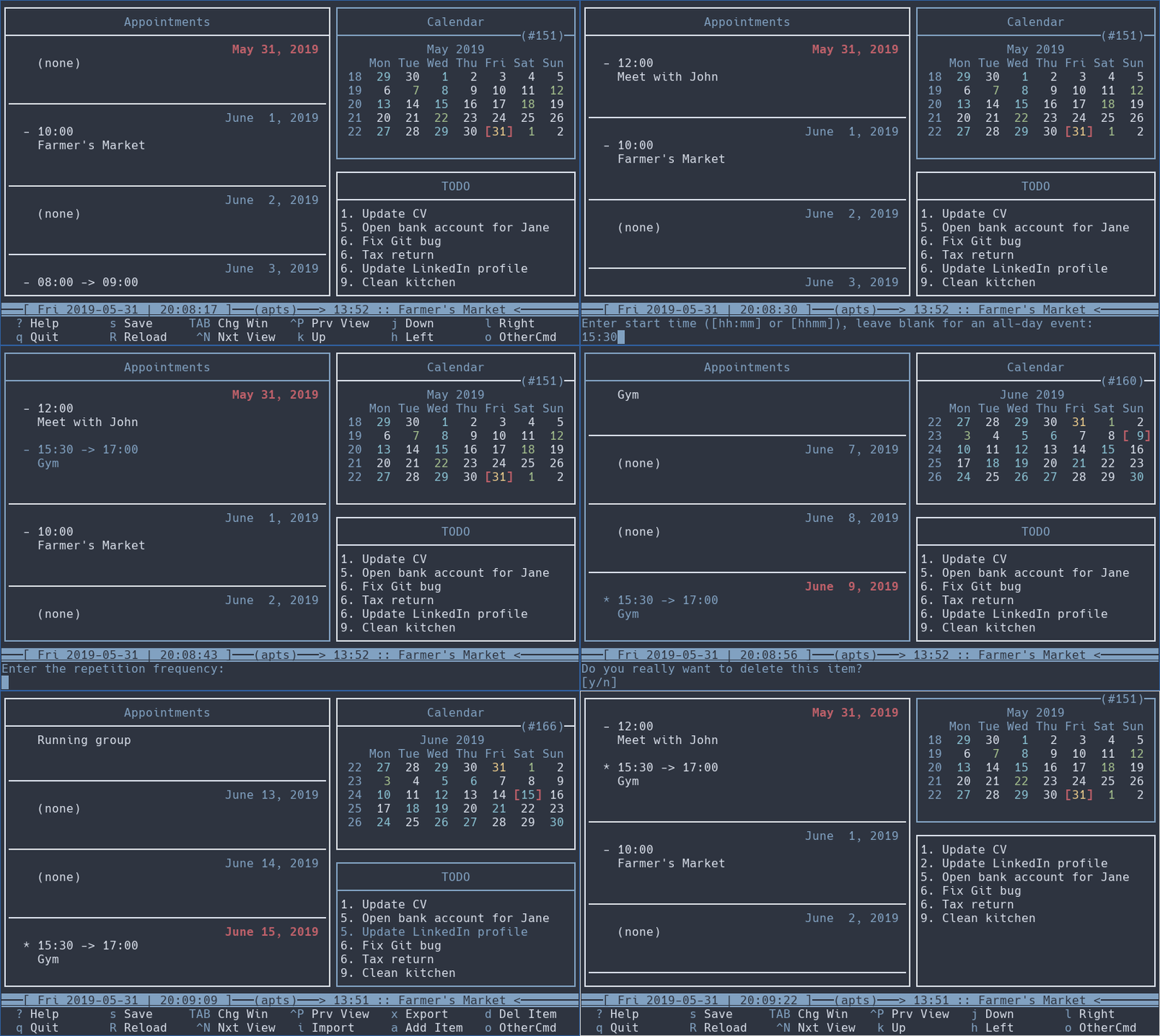
这个工具其实一直都有,叫做Calcurse。不知道为什么,它的界面对我来说有一种谜之美感:
安装
Calcurse 本身的安装非常简单,按照下面几步:
- 从官网上下载安装包。
- 解压缩安装包
- Mac 的话,直接双击解压缩就好
- Linux 先定位到下载目录,然后运行下面这些代码就可以了
$ tar zxvf calcurse-4.3.0.tar.gz
$ cd calcurse-4.3.0
$ ./configure
$ make
$ make install
- 之后在终端输入
calcurse就可以进入到日程表了。
关于 calcurse 的更多指令,可以参考它的帮助文档。这里不多赘述。总而言之,我觉得它的使用界面还是非常友好的,只是快捷键有点多,需要记一下。熟悉了以后就会感觉顺手了。
同步Google Calendar
稍微麻烦一点的是如何把 Google Calendar 上面的日程表条目同步到 calcurse。最新的 calcurse 版本(4.3.0)已经支持了这个功能。不过设置起来还是有点费事的。
- 首先,如果没有 python 3 的话,安装一下。然后还需要安装
httplib2:
pip3 install --user httplib2
-
我们需要去 Google Developer Console 创建一个新的项目(Project)。我给它命名为"Calcurse”,不过实际上叫什么都好。
-
在 Google API 列表 里面找到 Caldav API 和 Google Calendar API,为上面那个项目开启这两个 API 的权限。
-
完成之后,去 Credentials 页面,点击创建验证(
Create credentials),选择验证方法为OAuth client ID,然后随便给这个验证起个名字。 -
弄好了之后,在 Credential 里面找到你的
Client ID和Client Secret。这个很重要,下一步需要用到。 -
在
~/.calcurse/目录下面创建一个新的文件夹caldav/,然后在这个文件夹里面创建一个新的文件config。把下面这些代码复制粘贴进去,当然别忘了把关键地方的信息替换掉,包括Path部分的邮箱地址,[OAuth2]部分的 Client ID 和 Client Secret:[General] # Path to the calcurse binary that is used for importing/exporting items. Binary = calcurse # Host name of the server that hosts CalDAV. Hostname = apidata.googleusercontent.com # Path to the CalDAV calendar on the host specified above. Path = /caldav/v2/xxxxxx@gmail.com/events/ # Type of authentication to use. Must be "basic" or "oauth2" AuthMethod = oauth2 # Enable this if you want to skip SSL certificate checks. InsecureSSL = No # This option allows you to filter the types of tasks synced. To this end, the # value of this option should be a comma-separated list of item types, where # each item type is either "event", "apt", "recur-event", "recur-apt", "todo", # "recur" or "cal". Note that the comma-separated list must not contain any # spaces. Refer to the documentation of the --filter-type command line argument # of calcurse for more details. Set this option to "cal" if the configured # CalDAV server doesn't support tasks, such as is the case with Google # Calendar. SyncFilter = cal # Disable this option to actually enable synchronization. If it is enabled, # nothing is actually written to the server or to the local data files. If you # combine DryRun = Yes with Verbose = Yes, you get a log of what would have # happened with this option disabled. DryRun = No # Enable this if you want detailed logs written to stdout. Verbose = Yes # Use the following to synchronize with an OAuth2-based service # such as Google Calendar. [OAuth2] ClientID = xxxxxxxxx.apps.googleusercontent.com ClientSecret = xxxxxxxxx # Scope of access for API calls. Synchronization requires read/write. Scope = https://www.googleapis.com/auth/calendar # Change the redirect URI if you receive errors, but ensure that it is identical # to the redirect URI you specified in the API settings. RedirectURI = http://127.0.0.1 -
打开一个终端,运行
calcurse-caldav --init keep-remote这个
keep-remote也可以换成keep-local或者two-way,实际上是在问日程表的版本到底是和远端(Google Calendar)还是本地保持同步,当然也可以双向同步。我的喜好是用keep-remote,这样一切都以 Google Calendar 上的日程表为准。运行这一步之后,如果一切顺利的话,会弹出一个 Google 的验证窗口。在这里输入自己的账户和密码,然后点击『同意』,授权使用自己的 Google Calendar 信息。
-
上一步之后,应该会出现一个网页,乍一看是无法访问的。先别着急关掉浏览器,去网址栏把
http://127.0.0.1/?code=之后的那个验证码复制出来,小心不要把最后的scope也加上。那个验证码的格式应该是类似下面这样的:
'4/Ok6mBNW2nppfIwyL-Q1ZPVkEk3zZdZN3mHcY#'
应该是以4/作为开头的。
- 最后一步,运行下面的代码:
calcurse-caldav --init keep-remote --authcode '4/Ok6mBNW2nppfIwyL-Q1ZPVkEk3zZdZN3mHcY#'
别忘了把验证码换成自己的。
这时在终端输入calcurse ,就可以看到同步好的日程表了。
Mac 上可能出现的问题
我在学校的 Ubuntu 机器上安装的时候,没遇到什么问题,很轻松就搞定了。但是在家里的 Mac 上,系统愣是跟我说找不到 python3,让我觉得很奇怪。于是又重装了一遍 python3,还是说找不到。
仔细看了一下报错,似乎我的 python3 是安装在 /usr/local/bin 里面,而 calcurse-caldav 的代码是在/usr/bin 里面找,难怪找不到。上网了解了一下,貌似是 El Capitan 之后,运行 brew install python3 会默认先安装在/usr/local/bin 里,造成了这个问题。
我不想改苹果的默认设置,所以就试了试下面几个指令,可惜都没用:
brew link pythonalias python=python3sudo ln -sf /usr/bin/python /usr/local/bin/python
最后用暴力的方法解决了,去找calcurse-caldav的源代码,把里面的路径改过来:
nano /usr/local/bin/calcurse-caldav
把第一行的#!/usr/bin/python3 改成#!/usr/local/bin/python3。之后就搞定了。
其他问题?
如果有什么其他问题,欢迎在下方留言⬇️。鉴于我也是刚刚开始用 calcurse,很多地方也不是很懂,希望和大家多多交流。
先写到这里,感谢阅读~